
FolderLooks / Guide
How to Change Folder Icons on a Mac (2 Easy Ways)
A custom folder icon makes it easier to spot the right folder at a glance, and it's one of the simplest ways to personalize your Mac. Here are two ways to do it — the manual macOS way, and the fast way with FolderLooks.
Method 1: Change a folder icon manually (built into macOS)
macOS lets you set a custom folder icon without installing anything, using the Get Info panel. It works, but it's a few manual steps for every folder.
- 1. Open the image you want to use as an icon (a square PNG with a transparent background works best).
- 2. Select the whole image and copy it with Cmd+C.
- 3. Select the folder you want to change and press Cmd+I to open Get Info.
- 4. Click the small folder icon in the top-left corner of the Get Info window to select it.
- 5. Press Cmd+V to paste your image onto the folder icon.
- 6. Close the window — Finder updates the folder icon immediately.
The downside: you need a properly cropped, square image for every icon, there's no way to reposition or resize it after pasting, and doing this for more than a folder or two gets tedious fast.
Method 2: Change folder icons instantly with FolderLooks
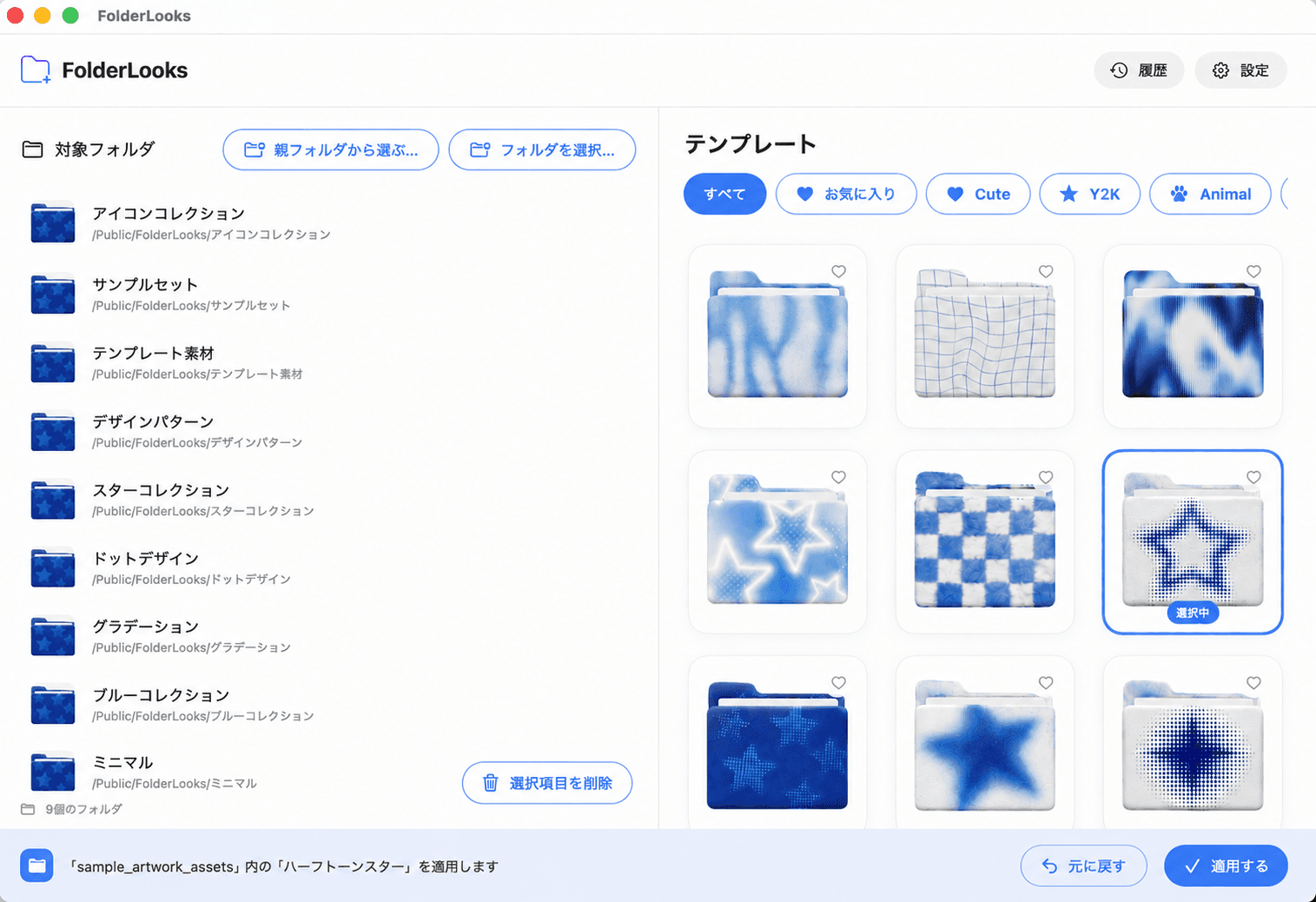
FolderLooks skips the image prep entirely. Pick a folder, pick a look, done — see it in action below.
Just pick. Just seconds.
Choose a pattern, hit Apply — your folder's new look lands instantly.
Target folder
- Photos
- Design
- Docs
Templates
- 1. Download and open FolderLooks.
- 2. Select one folder — or several at once — right in the app.
- 3. Pick a template from the built-in gallery, or upload your own photo and fit it to the folder shape (or keep it as-is).
- 4. Click Apply. The new icon shows up in Finder instantly.
No image editing, no cropping to a square, and you can apply the same look to a batch of folders in one go.
Try it on your own folders
Free to try, with Pro for unlimited custom templates.
FAQ
Can I change multiple folder icons at once?
Not with the built-in Get Info method — each folder has to be done one at a time. FolderLooks supports selecting several folders and applying one template to all of them in a single click.
Will changing a folder's icon affect the files inside it?
No. A folder icon is just how Finder displays the folder — the files and their contents are never touched, and the change is fully reversible.
Can I go back to the default folder icon?
Yes. Select the folder, press Cmd+I to open Get Info, click the icon thumbnail in the top-left corner, and press Delete — Finder restores the default folder icon.